
Edit Metadata
Contribute mode lets you correct and extend the metadata on existing areas, then submit your changes as a batch for validation. Nothing you edit is published directly — every change is reviewed first.
This page covers existing mapped areas. To create new ones, see Add Areas.
Edit
Editing happens directly from the map.
Switch mode
Select Contribute in the header.
Select area
Click a polygon on the map.
Edit
Click Edit at the foot of the metadata panel. Each tab turns into a form, with dropdowns for controlled vocabularies like governance type, free-text fields for names and authorities, and repeatable sections for leadership and documents.
- Save stores your changes in the pending batch
- Cancel discards the current edits
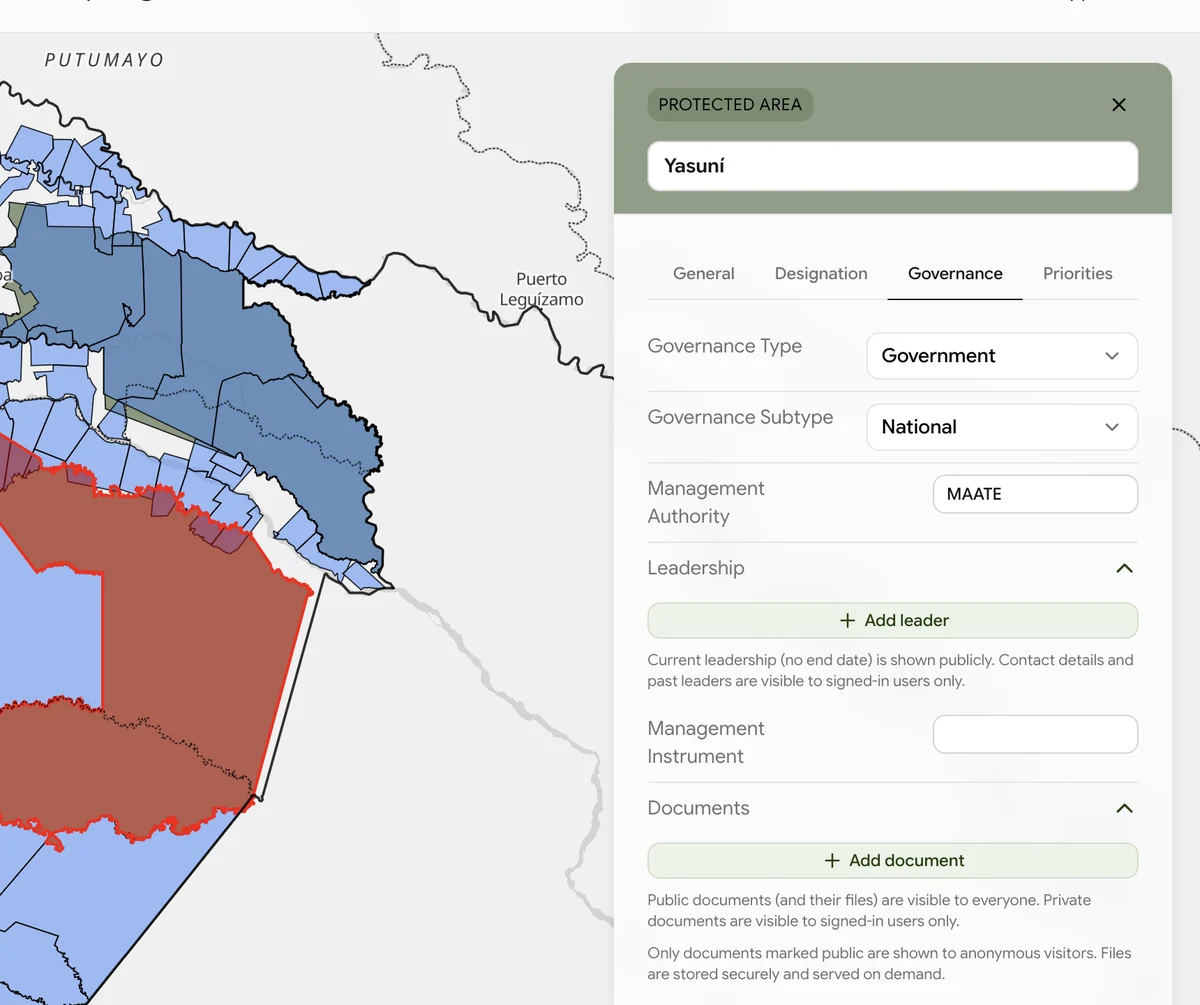
Some fields carry a note about who will see them. Current leadership is public while contact details and past leaders are not, and documents are public only when explicitly marked so.
Saving does not submit anything. Changes are held against your account as drafts, so they survive a reload or a move to another machine, and you can work through several areas across several sittings before sending anything.
Review & Submit
When the batch is ready, submit it for validation.
Review
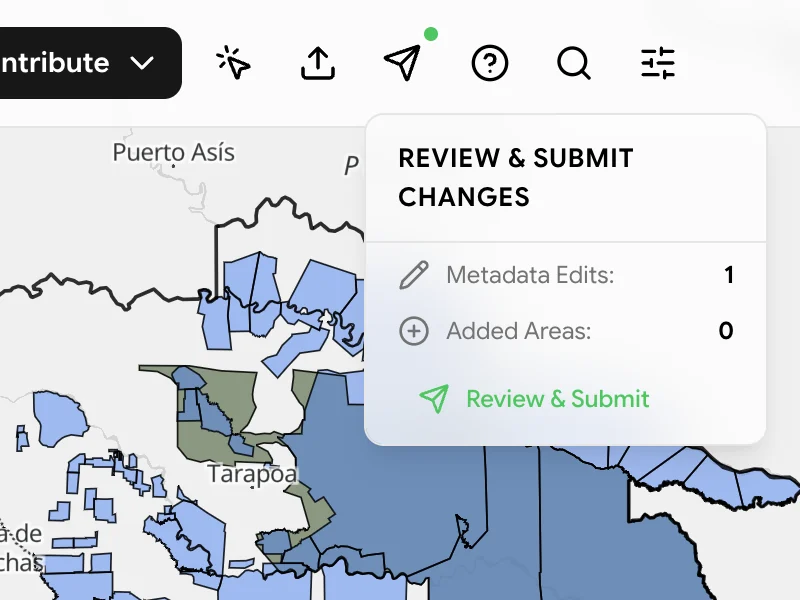
Open the send button in the toolbar — it carries a dot while anything is pending. The popover reports Metadata Edits and Added Areas so you can confirm the batch holds what you expect.
Submit
Click Review & Submit to open the submission review, which lists each change as original value against new value. Submitting is the last step, and nothing reaches a validator before it.
Help
The in-app help panel covers the same ground in two topics: Edit Information for modifying metadata, and Submit Changes for reviewing and sending a batch.