
Create a Story
A story walks a reader through a territory chapter by chapter, with the map traveling alongside the text. Authoring one needs a voices grant for every territory the story speaks for — switch to the Create or edit lens to begin.
Start the Story
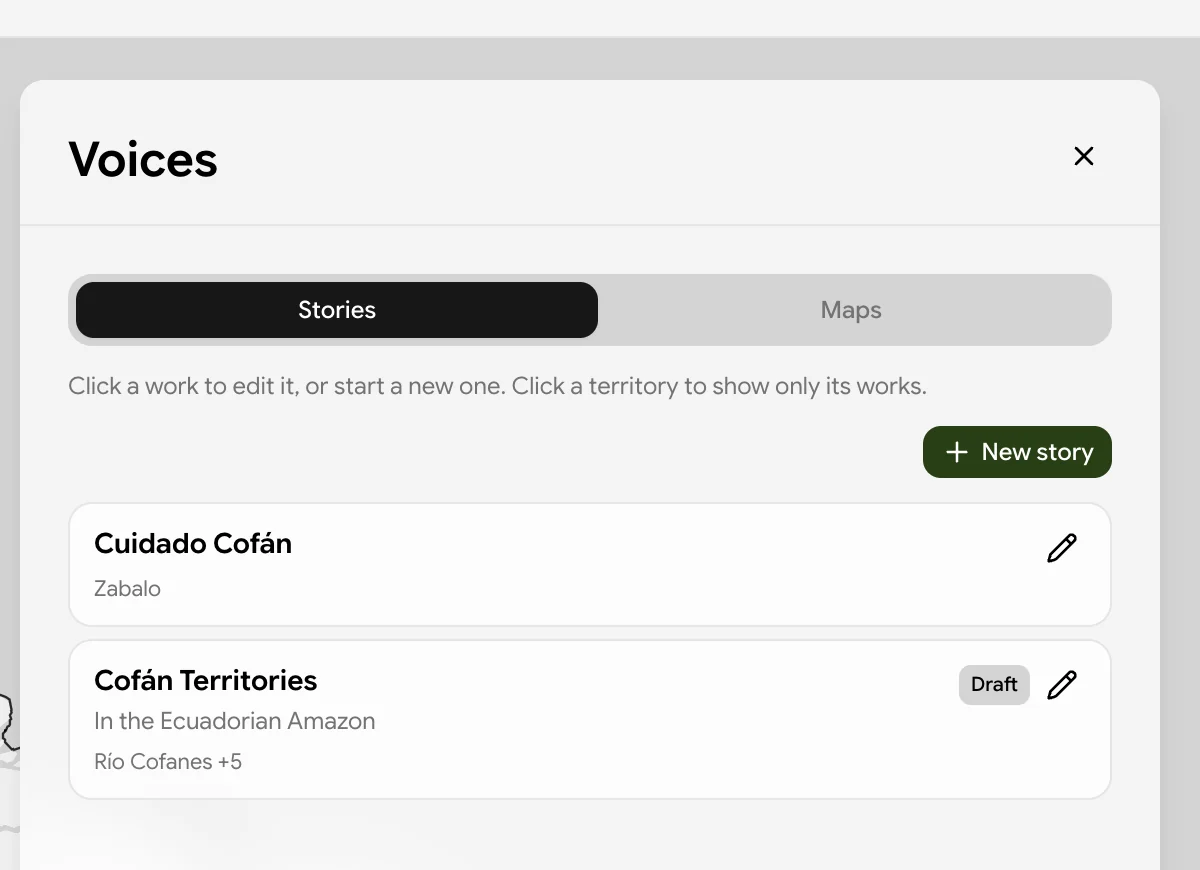
Choose New story, then fill in the details. The story has to exist before it can have chapters, so this first step is deliberately short.
| Field | Notes |
|---|---|
| Title | Required. |
| Summary | A short description shown on the story's card in the list. |
| Language | The language you are writing in, as a code such as es, pt, or quz. It labels the work and is never used to translate it. |
| Territories this speaks for | Required — at least one. |
To set territories, click a territory on the map to add it, and click again to remove it. Only territories you hold Voices access for can be added, and those are the ones left in color on the map; the rest drop back. The territory you started from is marked Started here.
Set How the Map Appears
Under On the map, you control the basin a reader sees while the story is open. These are authoring decisions that travel with the work rather than reader preferences.
- Hide every other territory — while someone reads, the rest of the basin drops away and only your territories stay on the map. Leave it off for a story about a shared river or a boundary you share with neighbors.
- Territory color — the fill applied to your territories while the story is open. Use Atlas color reverts to the color the Atlas assigns by classification.
- Territory transparency — how solid that fill is. Keep it faint so your own places and drawings stay readable on top; the control caps out well short of fully opaque for exactly this reason.
Opening View
By default a story opens framed on your territories and everything on the map. To choose the view yourself, move the map where you want readers to start and save it with Use this view. Go back to the automatic view clears it again.
Add Chapters
With the story saved, Add chapter builds it up. Each chapter has a title and a body you compose from sections.
Title the chapter
Give it a chapter title; untitled chapters show as Untitled chapter in the list.
Build the body
Use Add a section to place content. A chapter can hold any mix of the sections below, in any order.
Save the map view
Set map view stores the current map position for this chapter, so the map travels there as the reader arrives. Click it again to clear it — a chapter with no saved view leaves the map wherever the reader left it.
Save
Save chapter commits it. Remove chapter deletes it.
Section Types
Text
Rich text with bold, italic, and bulleted lists.
Photo
JPEG, PNG, or WebP up to 10 MB, with an optional caption and credit. Large images are downscaled on upload, so there is no need to resize first.
Video or audio
Paste a link from YouTube, Vimeo, SoundCloud, or Spotify. Other hosts are rejected with a message naming the four that work.
Map item
Geometry shown for this chapter alone — draw a point, line, or area, or upload a file. A chapter overlay holds up to 50 features.
Showing a Community Map
Show a community map displays an existing community map as an overlay for a chapter, which is the usual way to pair a narrative with places the community has already mapped. Choose None to show no overlay, or pick one of your existing maps.
Map background switches the basemap for the chapter between Default and Satellite.
Set Visibility and Publish
A new story starts as a draft. Use Who can see this to choose between draft, community only, and public when you are ready — see Visibility & Sharing for what each tier means and who it reaches.
Published stories need no review or approval.
Editing Later
Open the Create or edit lens and click the story to reopen it. The list hint reads Click a work to edit it, or start a new one. Click a territory to show only its works.
Details returns to the title, territories, and map settings; chapters can be edited, reordered, or removed individually. Delete removes the story and all of its chapters, and cannot be undone.