View Areas
When you first open the Atlas you are in Explore mode, where you can browse areas and read their metadata. Nothing you do here changes the data — editing requires Contribute mode.
Legend
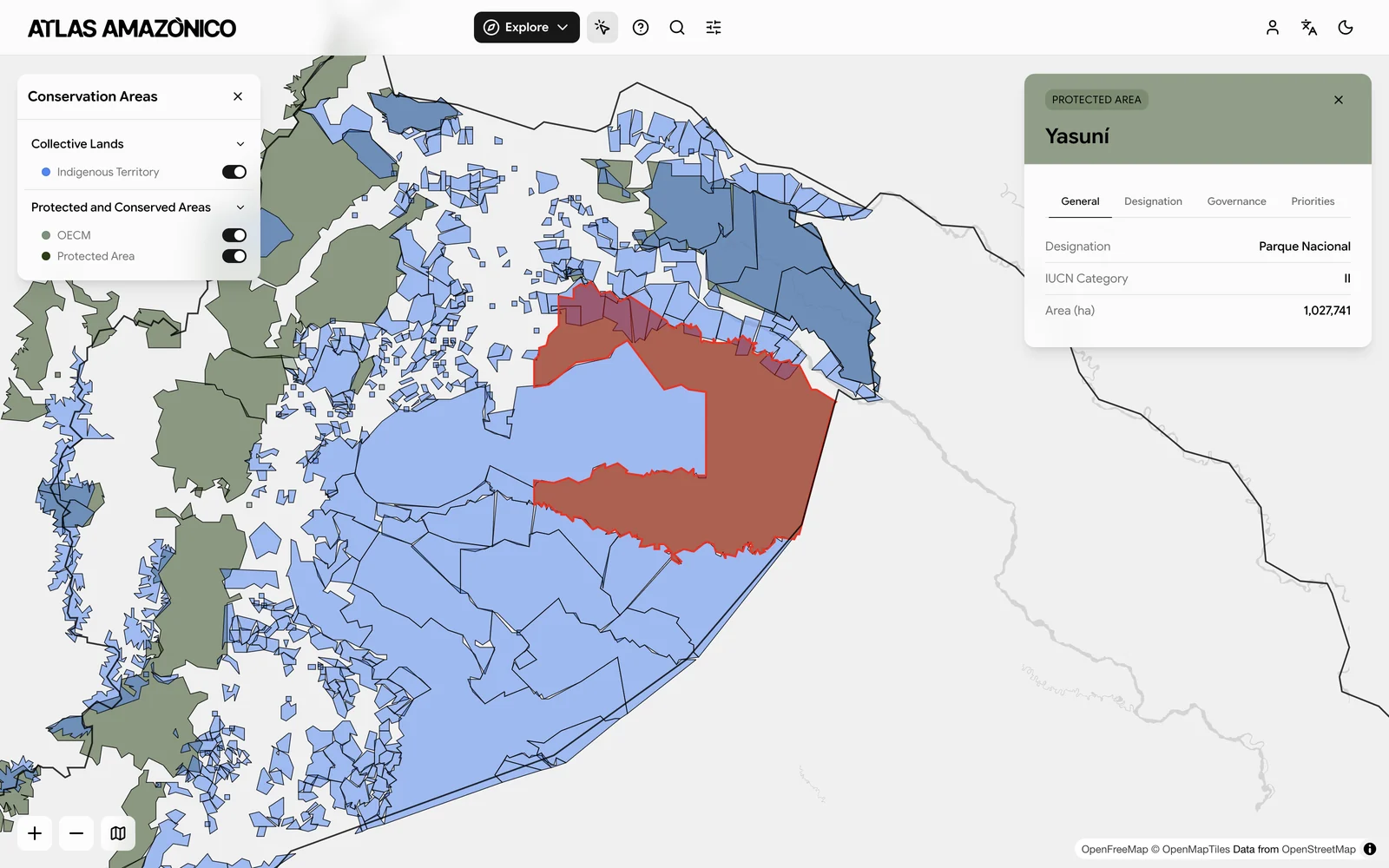
The Legend control on the left of the map decides what is drawn. Expand or collapse area types, toggle individual area classes on and off, and the map follows.
The legend is organized by the Atlas taxonomy, which has two levels you will see here:
- Area Type — the broad grouping based on governance system (PCA, Collective Land)
- Area Class — a more specific category within each type (Protected Area, OECM, Indigenous Territory)
| Area Type | Area Class |
|---|---|
| PCA | Protected Area |
| PCA | OECM |
| Collective Land | Indigenous Territory |
| Collective Land | Afro-Descendant Land |
Organizing the legend this way lets the Atlas hold a wide range of national designations in one consistent structure without replacing their original meaning, which is what makes comparison across countries possible. See Taxonomy for the full framework.
Map Controls
Two controls configure the view itself.
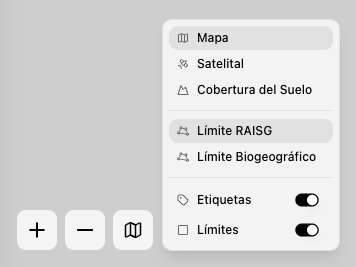
Layers
Switch between basemaps (map, satellite, land cover) and toggle labels or boundaries.
Limits
Restrict the view to either the RAISG Amazon limit or the biogeographic limit.
Search
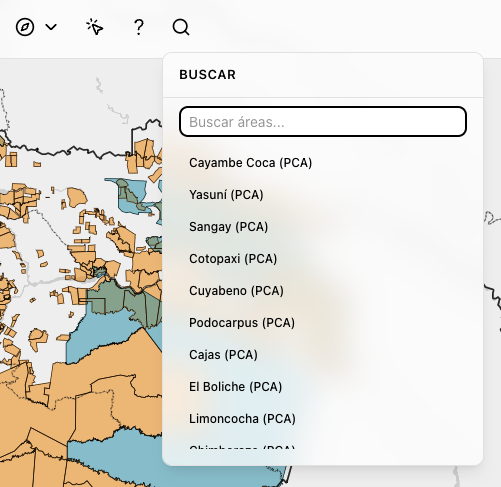
Open Search to find areas by name or related attributes. Type a query, select a result, and the map flies to that area.
Metadata
Click any polygon to open its metadata.
Select
Click an area on the map.
View
A metadata card opens with the area name, type, and attributes.
Read
Browse fields such as designation, governance, language, and area. In Explore mode these are read-only.
Help
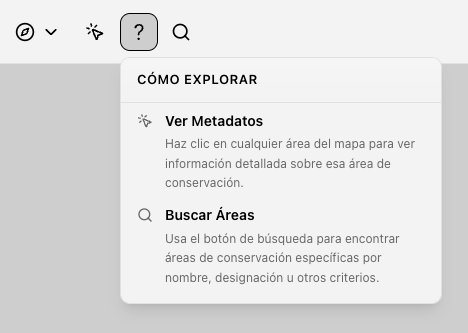
The in the header toolbar gives quick guidance without leaving the map.