
Create a Map
A community map records the places a community wants on the map — points, lines, and areas, grouped under types it defines itself. As with stories, authoring needs a voices grant for every territory the map speaks for.
Start the Map
Choose New map in the Create or edit lens, then set the details. The map has to exist before places can be added to it.
| Field | Notes |
|---|---|
| Title | Required. |
| Summary | A short description shown on the map's card in the list. |
| Language | The language you are writing in. It labels the work and is never used to translate it. |
| Territories this speaks for | Required — at least one. |
Territories are set by clicking them on the map, exactly as for a story: the ones you can add stay in color, and editing the map later requires access to all of them.
The On the map settings — hiding other territories, territory color, and transparency — work the same way as in a story. Keeping the territory fill faint matters more here, since your places sit on top of it.
Add Places
There are three ways to get geometry onto the map.
At map center
Move the map over the spot, then Add place at map center drops a place there. The quickest route for a handful of points.
Draw
Draw a point, line, or area directly. Lines and areas are built by clicking each vertex, then double-clicking or pressing Enter to finish; Esc cancels.
Upload
Bring in existing geometry as GeoJSON, KML, KMZ, a zipped shapefile, or GeoPackage (.gpkg).
A community map holds up to 2,000 places. If an uploaded file contains more, the first 2,000 are added and the panel tells you how many it took — so a large dataset is truncated rather than silently refused or left to lock the browser.
Describing a Place
Each place carries a name, a short description, and a longer body you can write about it. A place can also be given its own color, though in most cases color is better handled through types.
Untitled places appear as Untitled place, and Save place commits the edit.
Group Places Under Types
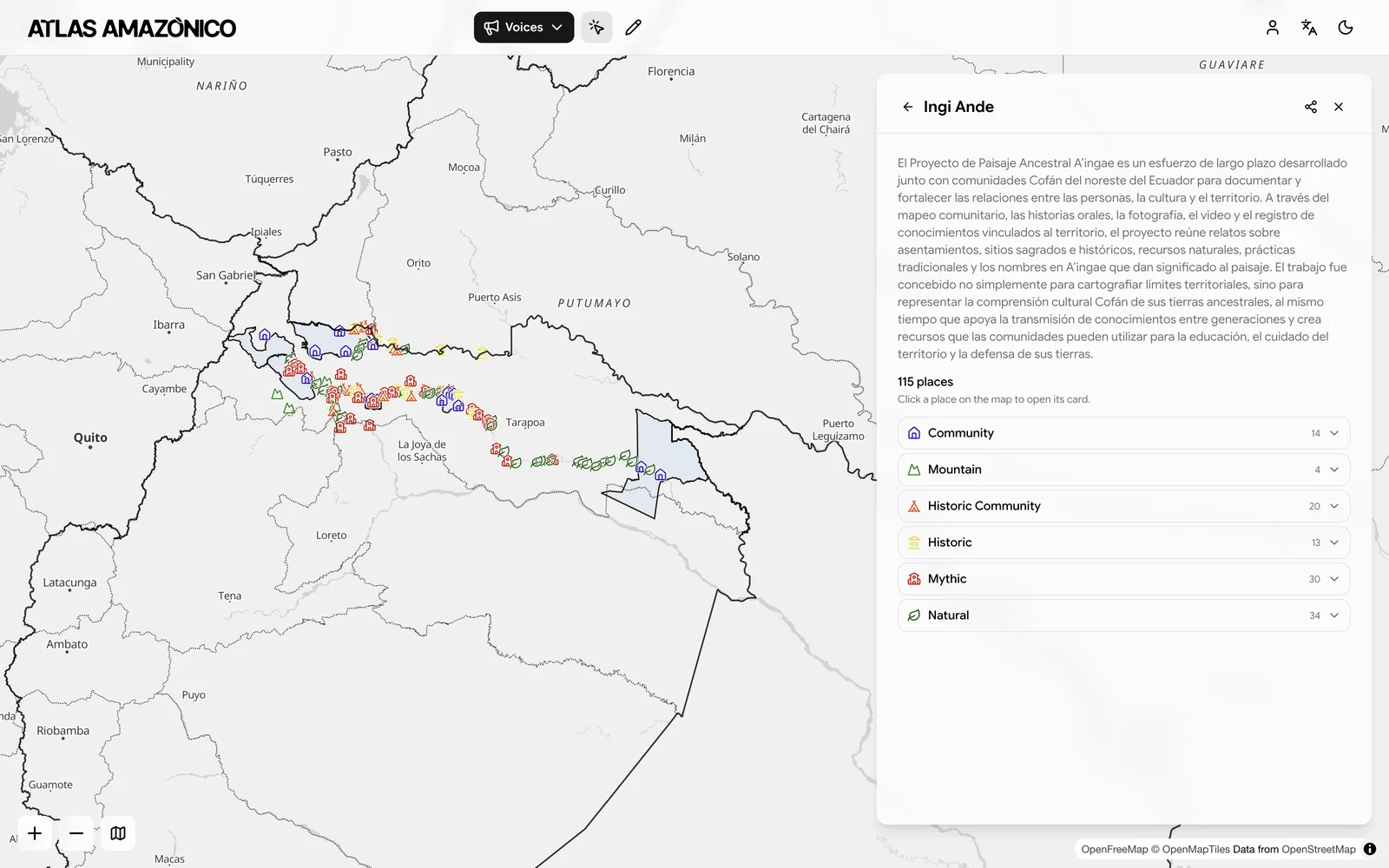
Types are what turn a scatter of pins into a map a reader can interpret. Every place assigned to a type shares that type's color and symbol, and the set of types becomes the legend.
This is what a finished, well-typed map looks like to a reader — six types, each with its own symbol and a count of the places under it.
Add a type
Add type creates one. Give it a name — unnamed types show as Unnamed type.
Choose color and symbol
Pick a color, then a symbol from seven groups: Community, Water, Land & forest, Animals, Culture & history, Threats, and Management.
Assign places
Set a place's Type directly, or use selection to assign many at once. Places left unassigned show as No type, and readers see them grouped as Other places.
A map can have up to 12 types. That ceiling is deliberate — a legend with more entries than that stops functioning as a legend.
Working in Bulk
Select switches the place list into selection mode, where you tick places to act on together. From there you can Select all, see a running count of what is selected, assign a Type to the whole selection, or Remove them.
Move all of these to another type reassigns an entire existing type in one step, which is the fast way to merge two types or retire one.
Set Visibility and Publish
A new map starts as a draft. Who can see this moves it to community only or public when you are ready — see Visibility & Sharing.
Published maps need no review or approval.
Using a Map Inside a Story
Once a map exists it can be shown as an overlay inside a story chapter, through Show a community map in the story editor. This is usually the better pattern than redrawing the same geometry: map the places once, then narrate over them.
Note the difference in scale between the two. A standalone community map holds up to 2,000 places; geometry drawn directly into a single story chapter is capped at 50, because it is meant for illustrating a point rather than carrying a dataset.
Editing Later
Reopen the map from the Create or edit lens. Details returns to the title, territories, and map settings. Delete removes the map and all of its places, and cannot be undone.