
Add Areas
Adding an area means uploading its geometry, completing its metadata, and submitting it alongside any other pending changes. Start from the upload icon in the header.
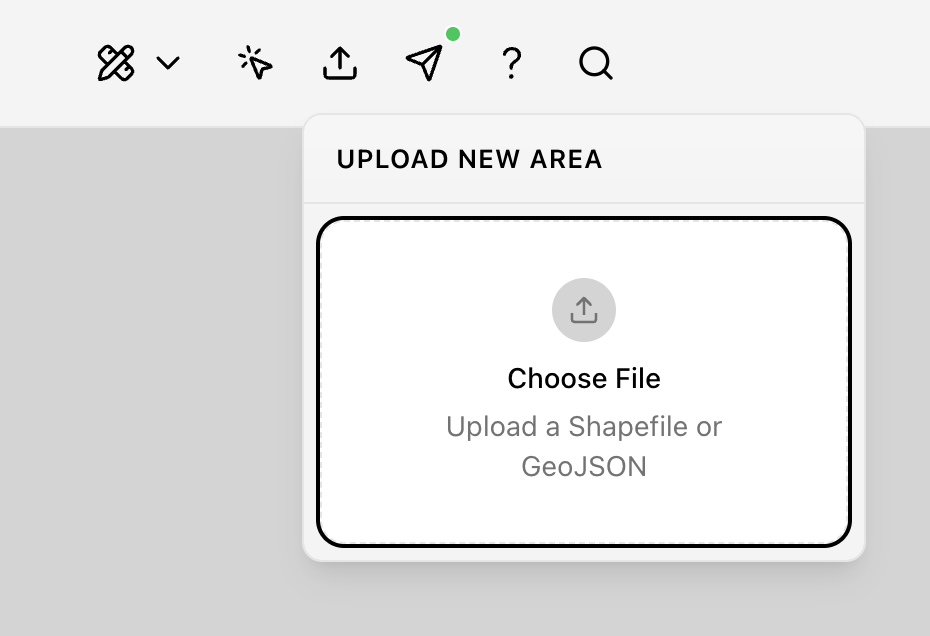
Supported Files
The uploader accepts:
- GeoJSON (
.geojson) - Shapefile packaged as ZIP (
.zip)
An individual .shp will pass the file picker, but prefer the ZIP whenever your shapefile has sidecar files (.dbf, .shx, and so on) — on its own, a .shp is missing the attributes and projection those files carry.
If the file cannot be parsed, the panel shows an error; correct the geometry or format and try again.
After Upload
What happens next depends on how many features the file contains.
- Single feature — the map focuses the new geometry and opens its metadata card, marked as a new uploaded area.
- Multiple features — a Select feature panel lists every geometry. Choose a display column from the file's attributes to label the rows, then click a row to load that feature onto the map.
Complete Metadata
New uploads use the same fields as edits to existing areas (see Edit metadata), with one difference: completeness is enforced.
- Choose Edit metadata if you are not already editing.
- Fill in every required field. Save stays blocked until they are all complete.
Saving adds the feature to your Added Polygons count in Pending Changes.
Before You Submit
A single batch can mix metadata edits on existing areas with new polygons, so there is no need to submit them separately. Use Submit in the Contribute panel once the Edits and Added Polygons counts reflect everything you intend to send.
Submitted packages are then reviewed in Validate mode — see the validation overview.
In-app Help
The help topic Upload New Areas covers adding areas from GeoJSON. Shapefile and ZIP uploads are also supported in the current interface, as described above.