
Read Stories and Maps
The View lens is where you read what communities have published. It needs no account and no permission, so this is what a first-time visitor sees when they open Voices.
Finding Works
There are two ways in, and the panel hint tells you which one you are using.
Browse the map
Pan and zoom the basin, and the panel lists the works published for whatever territories are in view. The hint reads Pan the map, or click a territory to see only its stories.
Pick a territory
Click a territory polygon and the panel narrows to that community's works alone. All territories in the panel header takes you back out to the whole basin.
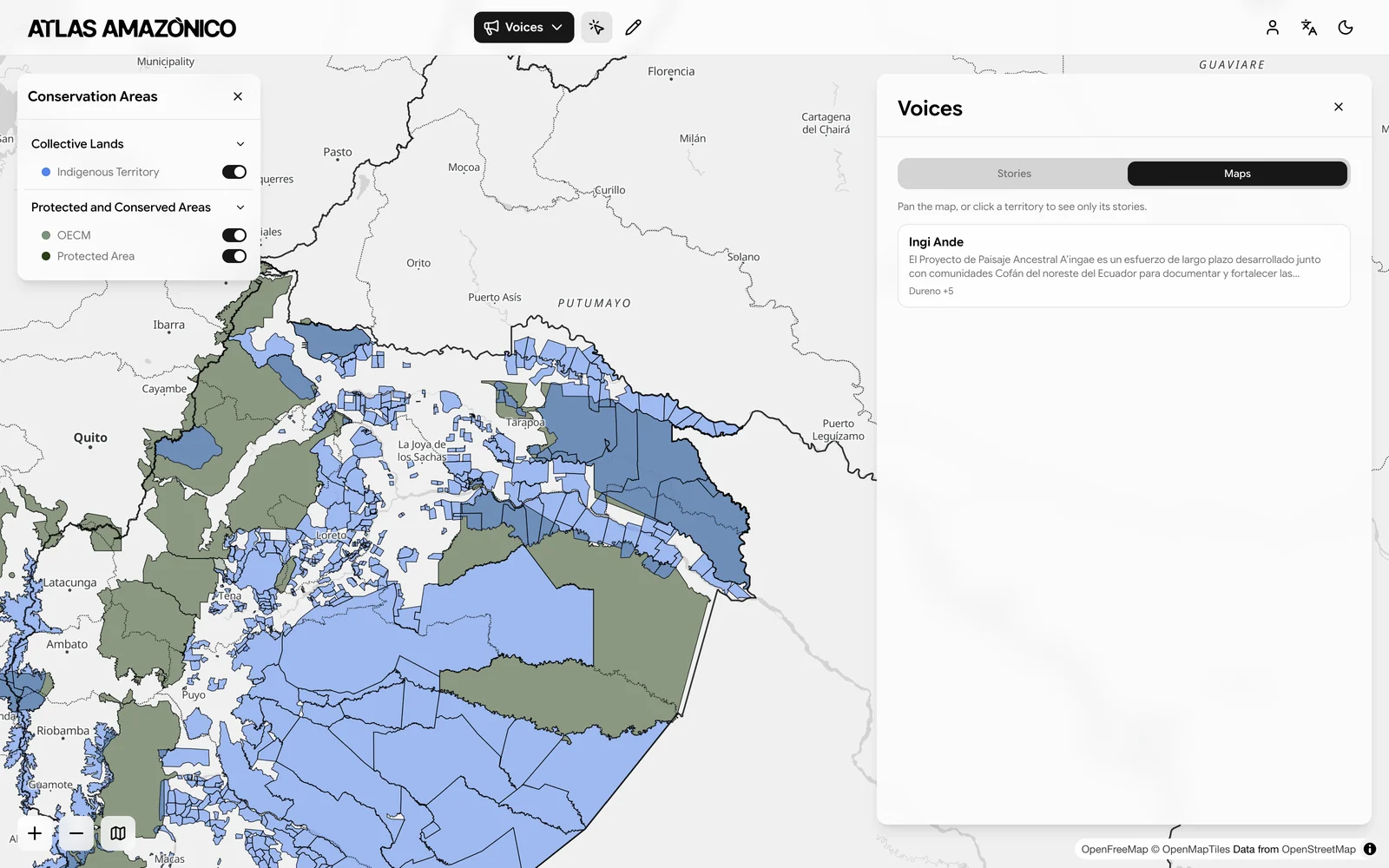
Works are split across Stories and Maps tabs. Each entry shows its title, a short summary, and a line giving its language and the territories it speaks for. Anything that is not public also carries a status badge, so an author browsing their own territory can see at a glance what is still a draft. Long lists page in with Load more rather than loading everything at once.
Reading a Story
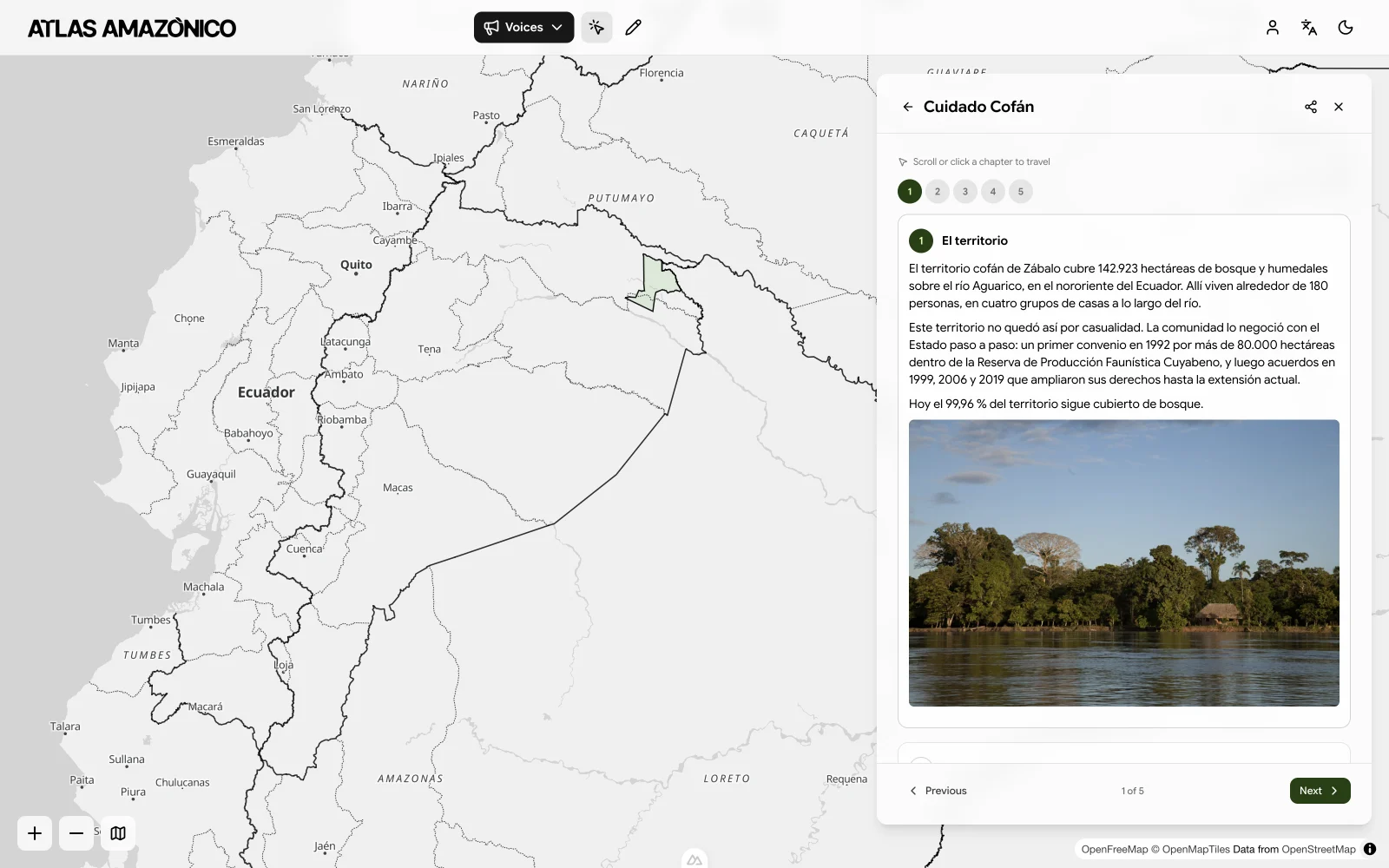
Open a story with Read. It presents as a sequence of chapters you move through by scrolling, with the map responding as you go.
Scroll or jump
Scroll through the chapters, or click a chapter directly to travel to it. The hint Scroll or click a chapter to travel appears while you read.
Follow the map
Where the author saved a map view for a chapter, the map moves to it as that chapter comes into focus. Where they did not, the map stays where it is.
Navigate explicitly
Previous and Next step one chapter at a time, and a counter shows your position as 3 of 12.
Reset
Reset view returns the map to the story's opening view if you have navigated away from it.
A story can also carry photos with captions and credits, embedded video or audio, and a community map shown as an overlay — all placed by the author within individual chapters.
How the Map is Presented
How the basin looks while you read is an authoring decision, not a reader preference. Depending on how the work was set up, the surrounding territories may drop away entirely so only the subject territories remain, or stay visible — which is the right behavior for a story about a shared river. Territory fill color and transparency are set by the author too.
Reading a Map
Open a community map with Open map. Its places are drawn on the Atlas map, and clicking one opens its card, with the hint Click a place on the map to open its card.
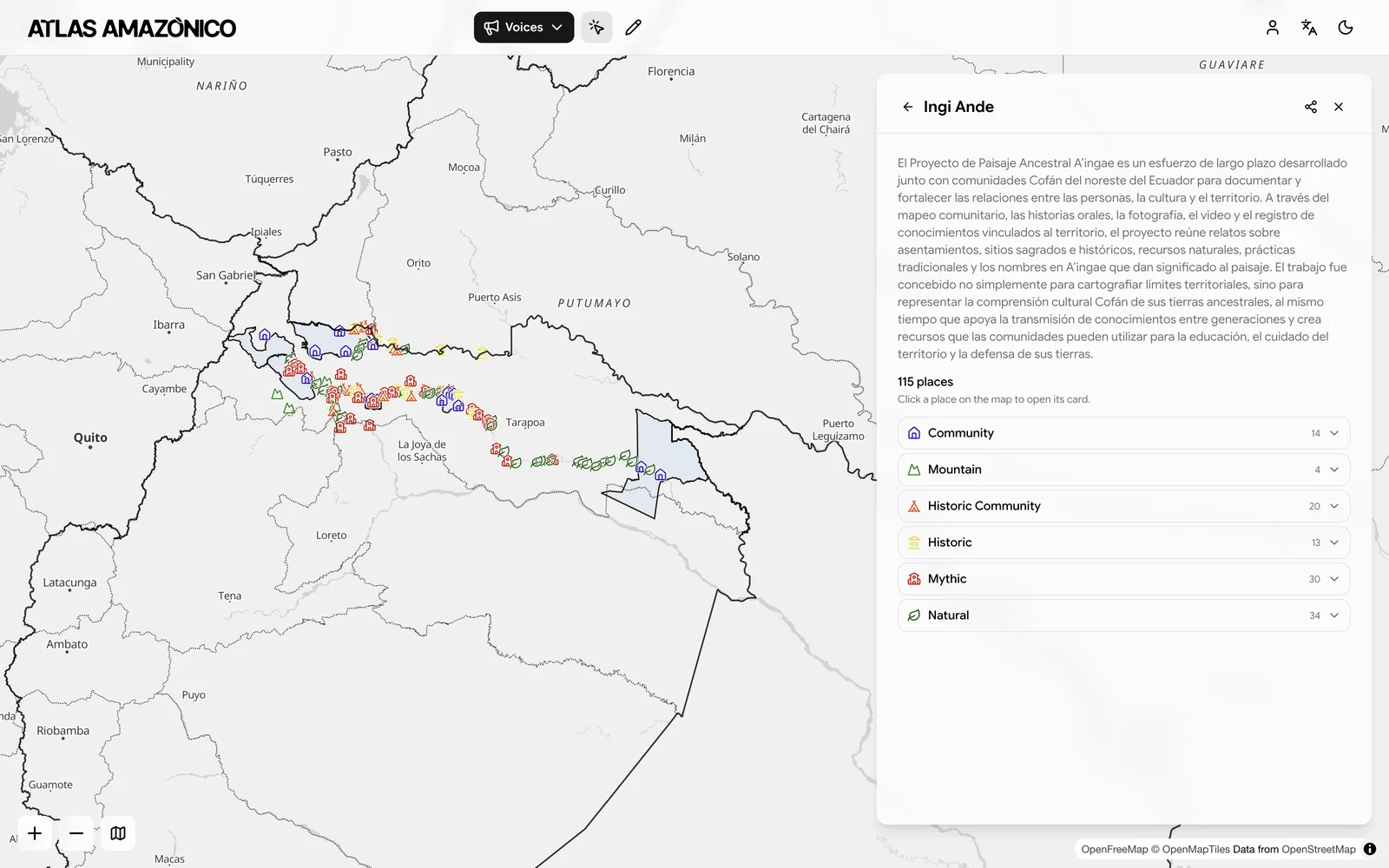
The Legend lists the types the community defined, each with its color and symbol. Places the author left untyped are collected under Other places. The panel also lists places so you can click through them from the list rather than hunting on the map; very long lists are truncated with a +N more indicator.
Opening a Shared Link
A story or map shared with you opens directly on that work, at /atlas?voices=<id>. The Atlas switches into Voices mode and opens the work for you without any navigation.
If the link resolves to nothing, the panel says so and explains the two likely reasons: the work may have been deleted, or it may only be shared with people who have access to its territory. Signing in may resolve the second case — see Visibility & Sharing.